Complete guide to configuring, deploying, and managing public display displays for specific installations in your portal.
Info
Disclaimer
The mentioned functionalities may be restricted depending on the purchased software license.

Complete guide to configuring, deploying, and managing public display displays for specific installations in your portal.
The mentioned functionalities may be restricted depending on the purchased software license.
Public display configurations are the bridge between your reusable templates and specific installations. They allow you to customize templates with installation-specific data, images, and settings while maintaining the underlying design structure.
Configurations serve as installation-specific implementations that:
| Step | Action | Purpose |
|---|---|---|
| 1️⃣ Template Selection | Choose base template | Defines layout and structure |
| 2️⃣ Content Customization | Configure blocks | Installation-specific content |
| 3️⃣ Preview & Test | Validate display | Ensure proper rendering |
| 4️⃣ Controller Linking | Connect to hardware | Enable physical display |
✅ Template Reusability - Use one template across multiple installations
✅ Installation-Specific Data - Show relevant metrics for each location
✅ Real-time Updates - Live data integration and display
✅ Easy Maintenance - Update templates to affect all configurations
Before creating configurations, ensure you have:
The configuration process involves:
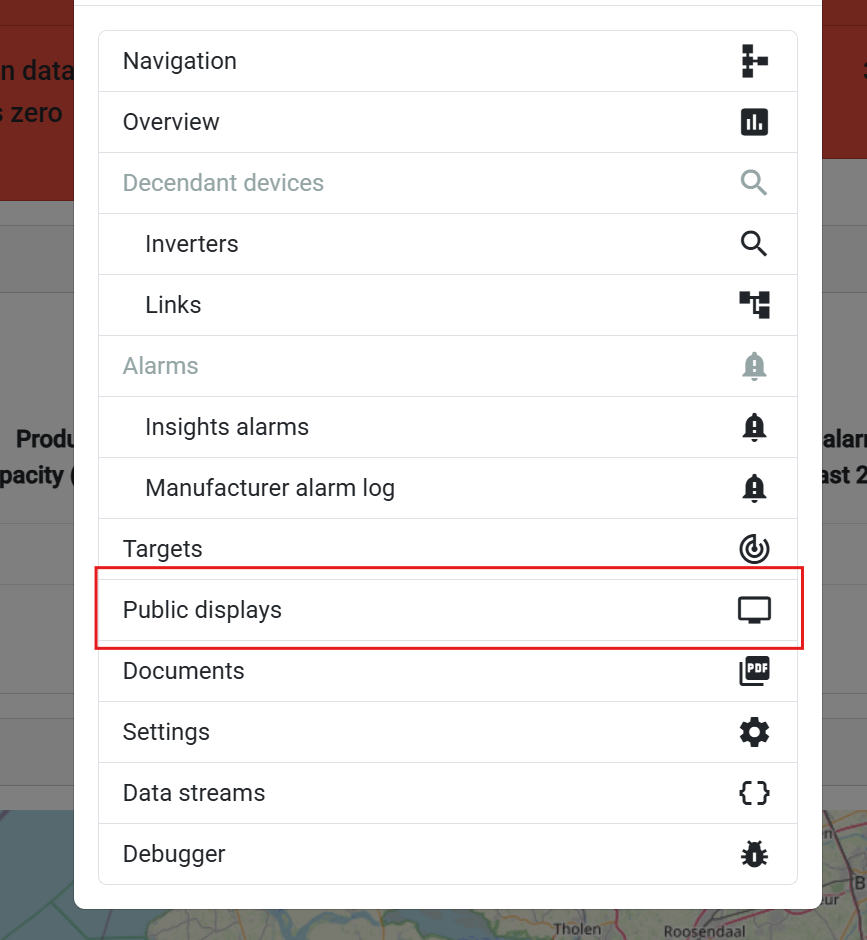
Step-by-step navigation:
Why installation-specific?
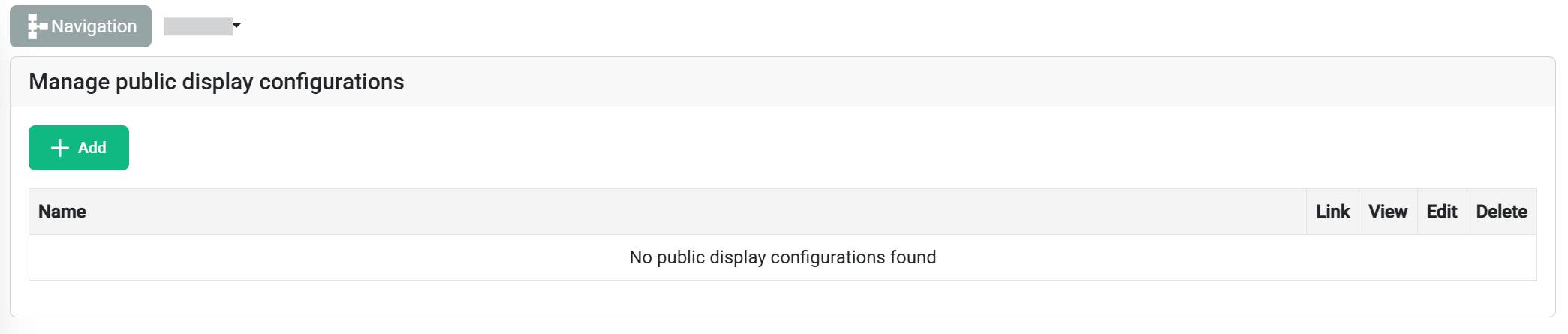
The configuration table provides comprehensive management for all public displays associated with the selected installation:
| Column | Information |
|---|---|
| 📝 Configuration Name | Custom identifier for easy recognition |
| 🔗 Link | Link a controller/ multiple controllers to the configuration |
| 👤 View | See a preview of the configuration to ensure quality |
| ✏️ Edit | Edit existing configuration |
| 🗑️ Delete | Delete existing configuration |
Click the "Add New Configuration" button (top-left of the table) to start the configuration process.
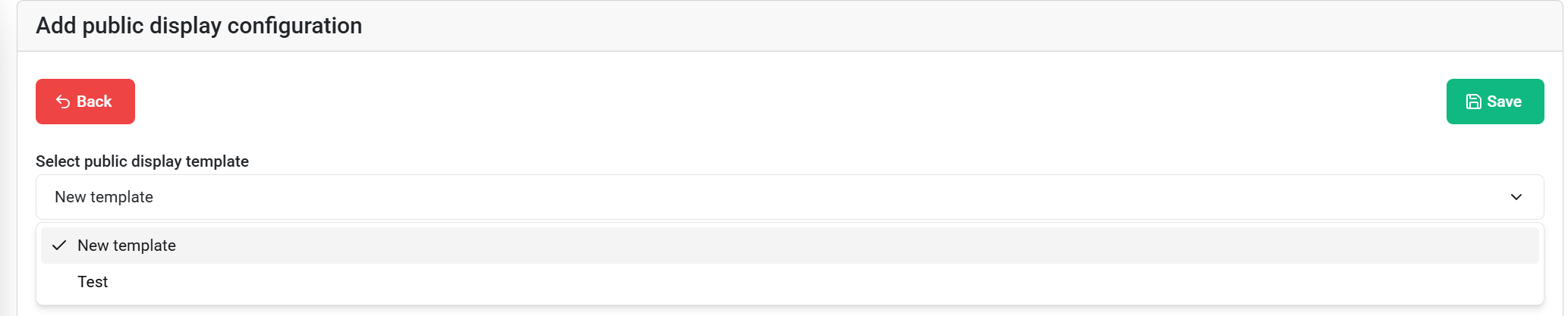
Selection process:
Template information displayed:
After template selection, you'll see:
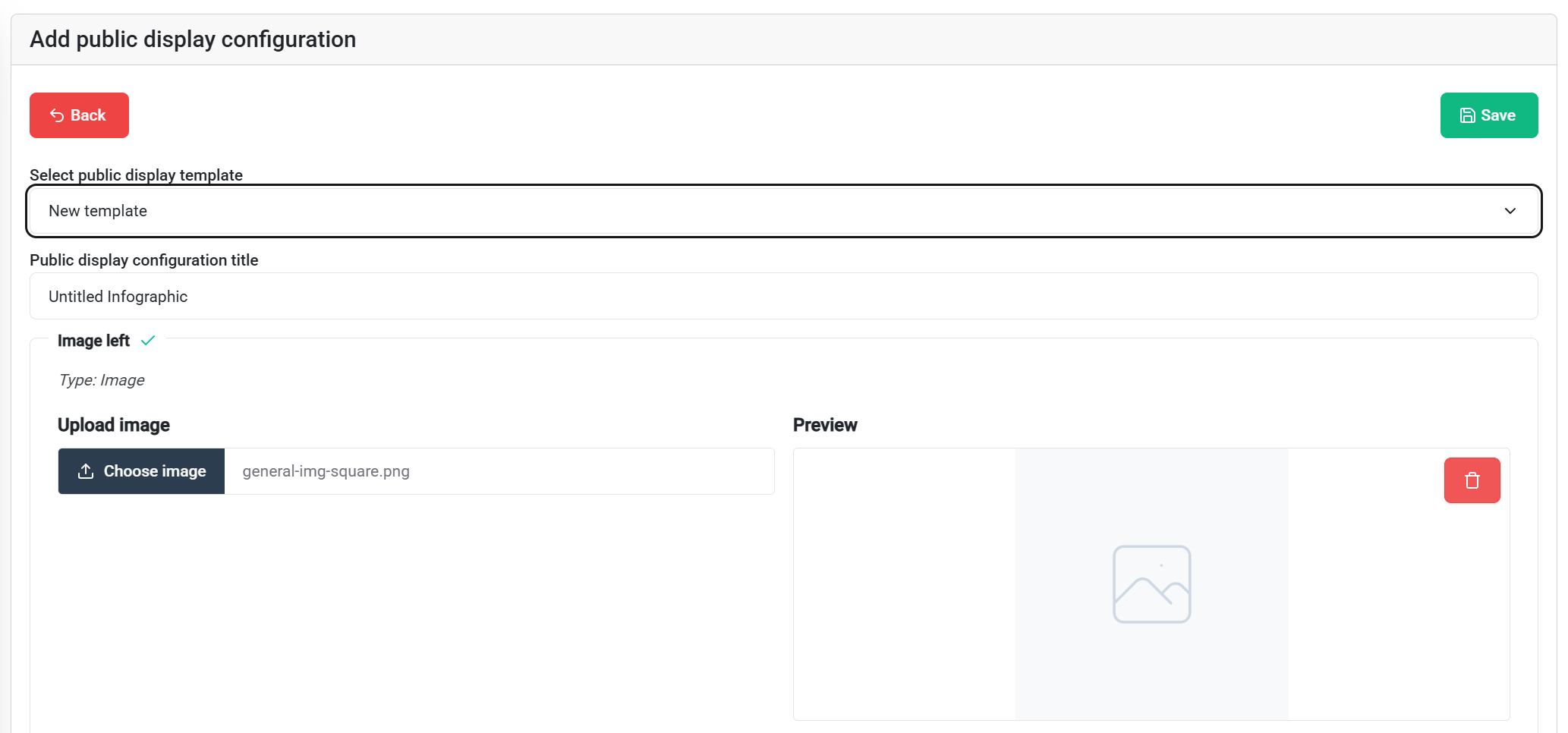
Configuration options:
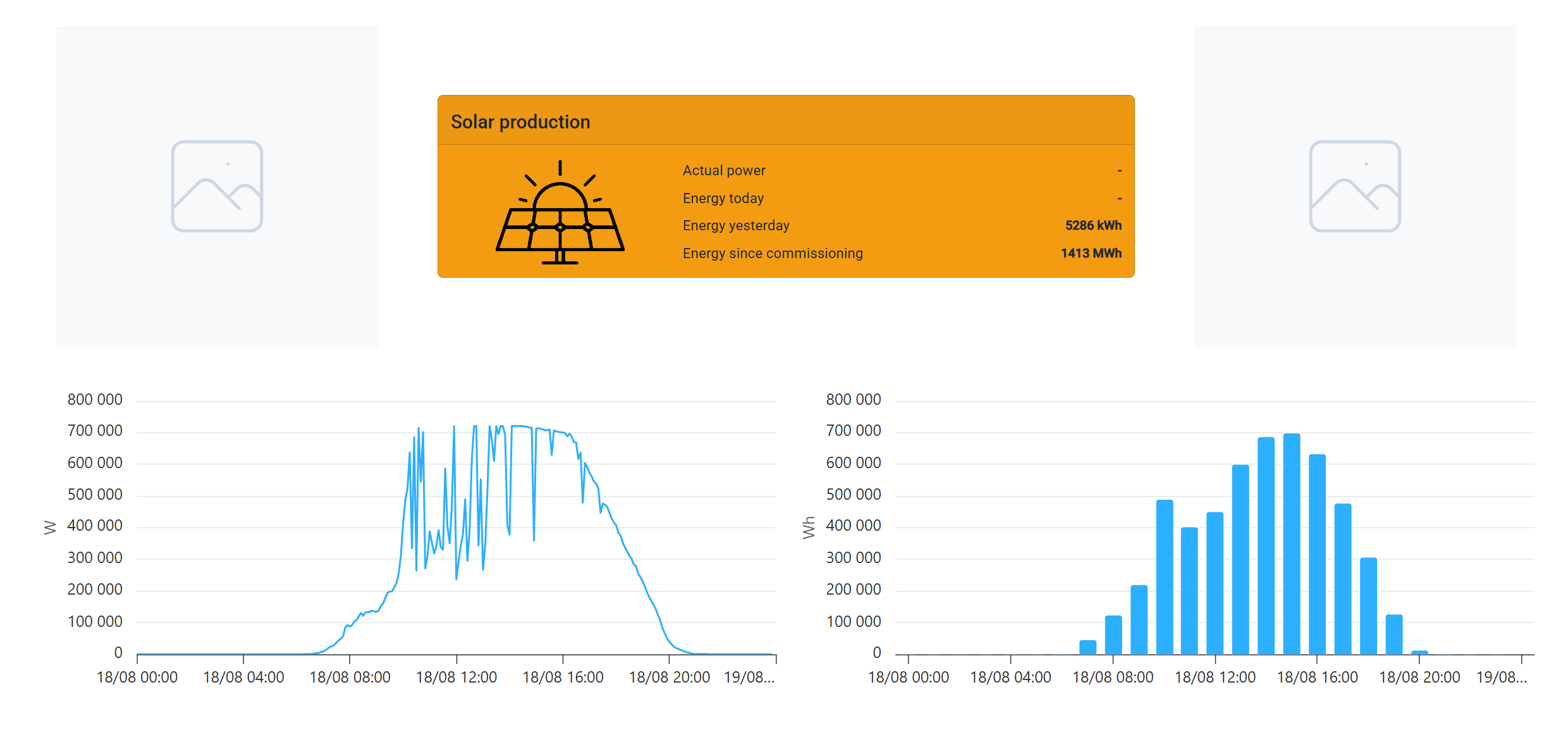
Real-time visualization:
Before deployment, verify:
✅ Visual Elements:
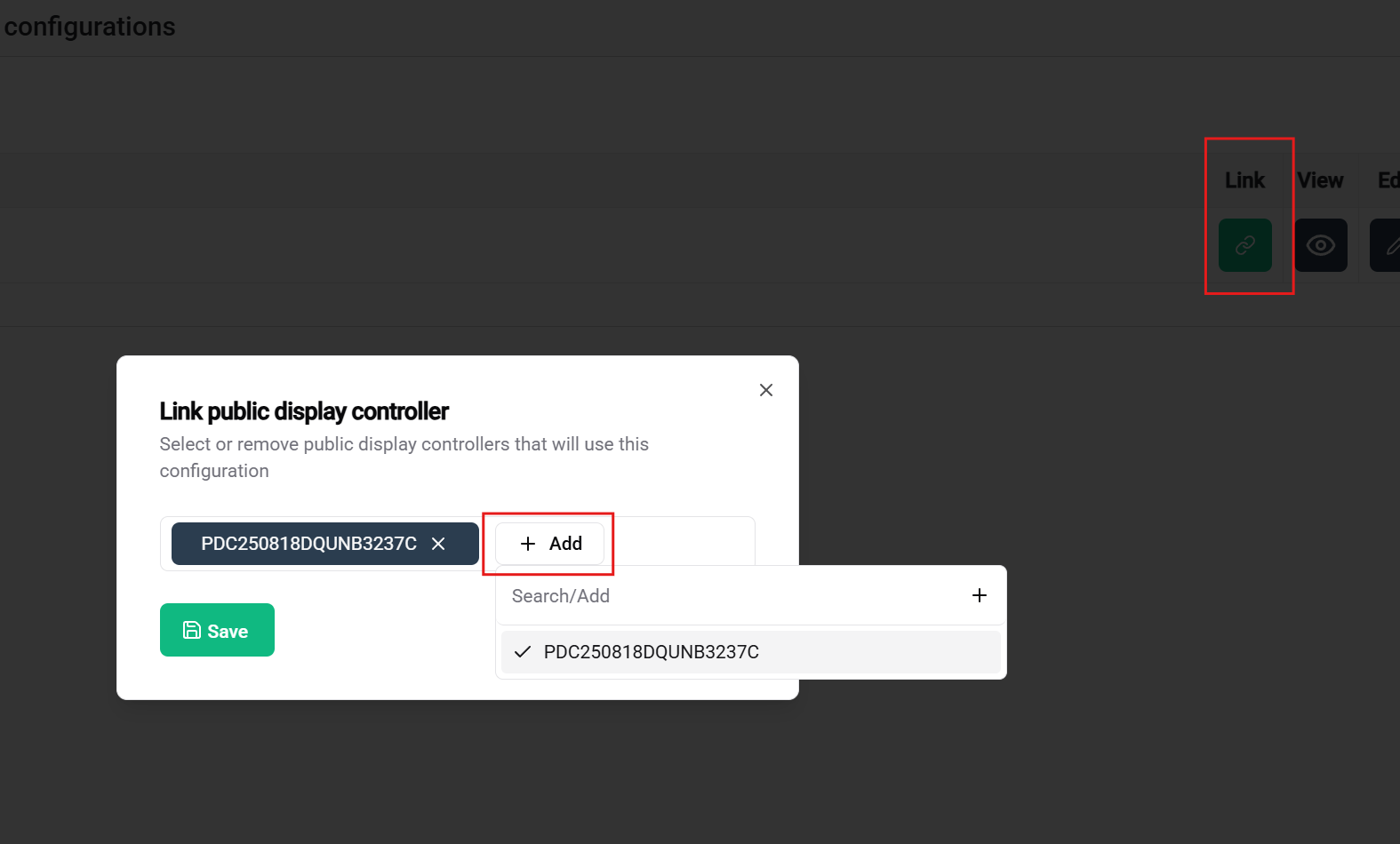
Prerequisites for linking:
Controller selection:
Previous steps:
🎉 Configuration Complete! Your public display is now ready for deployment and will provide valuable visual insights for your SmartgridX installation!