Learn how to manage, configure, and customize public displays in your portal.
Info
Disclaimer
The mentioned functionalities may be restricted depending on the purchased software license.

Learn how to manage, configure, and customize public displays in your portal.
The mentioned functionalities may be restricted depending on the purchased software license.
SmartgridX's public displays tool is designed to generate fully customizable visualizations for installations. Whether you need internal analysis dashboards or quick and accessible visual displays, public displays offer flexible, customizable, and user-friendly configuration options.
Important Notice This guide provides a quick start overview of public displays, covering the main components and their effective usage. Detailed information for each component is available on their respective documentation pages.
⚠️ This feature is currently in active development - new features and options will be continuously added. For suggestions or feature requests, please contact our support team.
The public display system empowers users to create custom visualizations for their installations with complete control over the display layout and content.
To set up public displays in SmartgridX, follow this three-step process:
💡 Pro Tip: You can create and test templates without physical hardware - simply skip step 1 to preview your designs before deployment.
Additional Resources 📖 For detailed controller information, visit the documentation page.
This section covers claiming and managing your public display controller hardware.
🚀 Quick Start Option: Want to explore public displays without hardware? Skip to to design and preview templates. You can always claim a controller later!
⚠️ Note: Without a claimed controller, you can still create and configure templates to preview the final result, but the public display won't display on physical hardware.
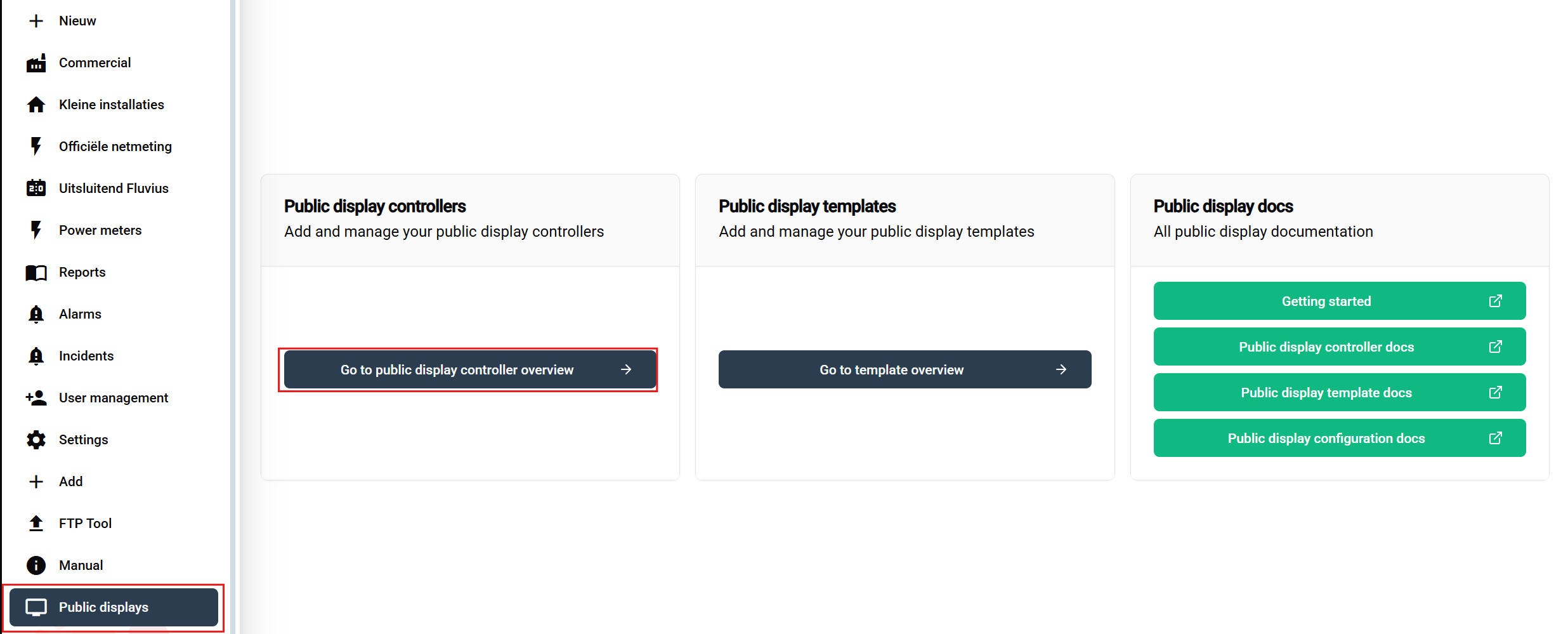
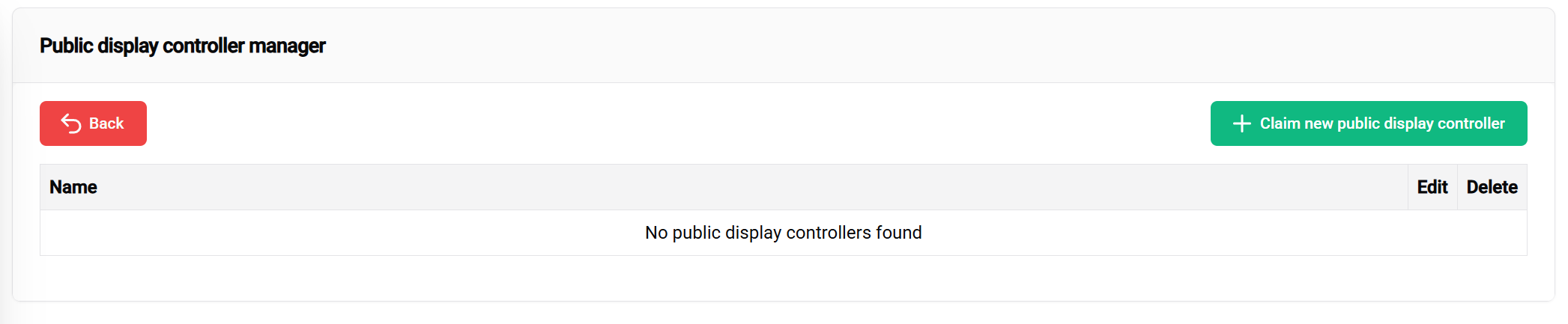
The controller table displays:
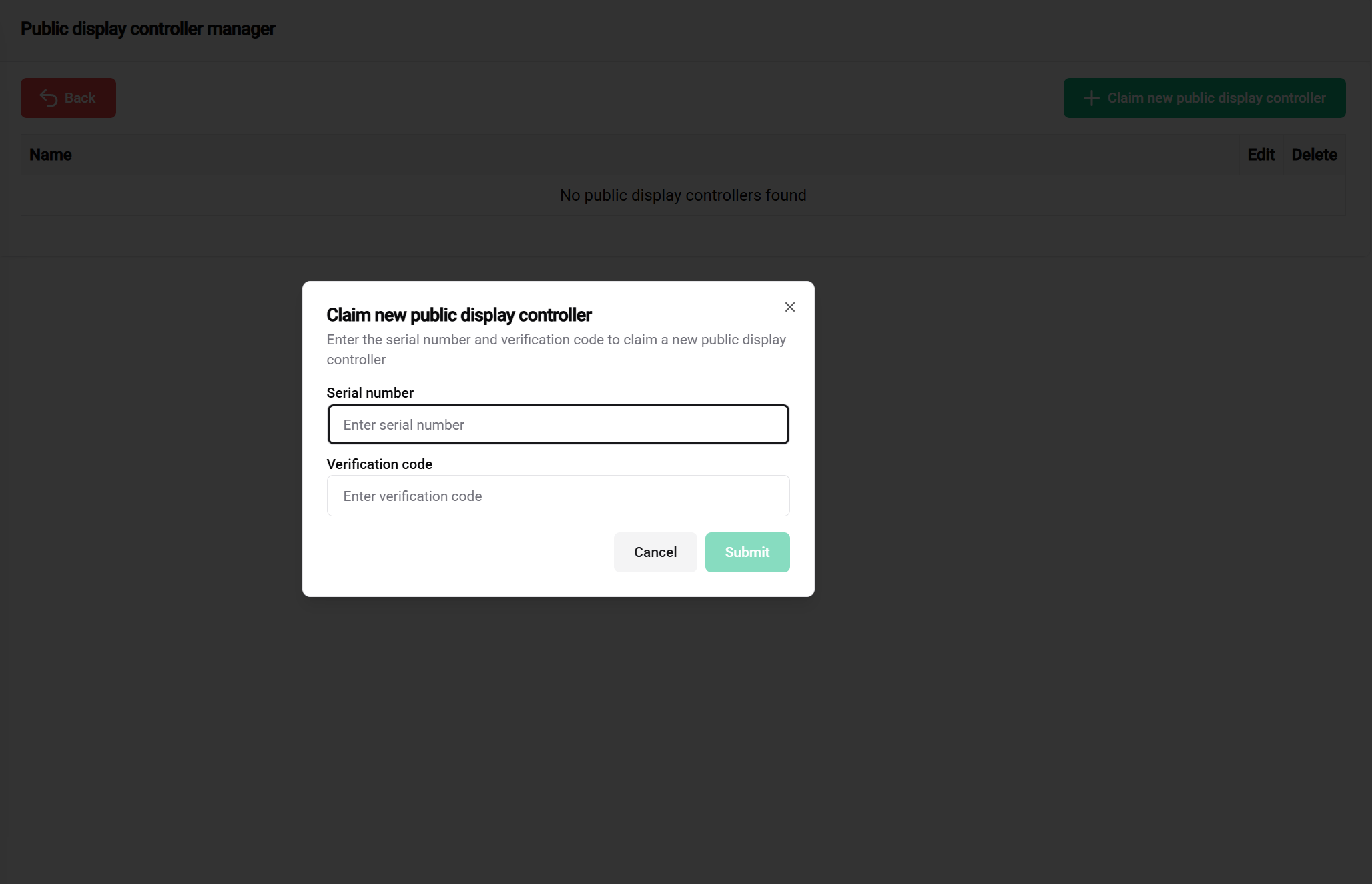
Steps to claim:
Security Notice 🔐 Save your controller credentials safely! Store the serial number and verification code in a secure file (Excel, text file, etc.). Our support team cannot provide verification codes for security reasons.
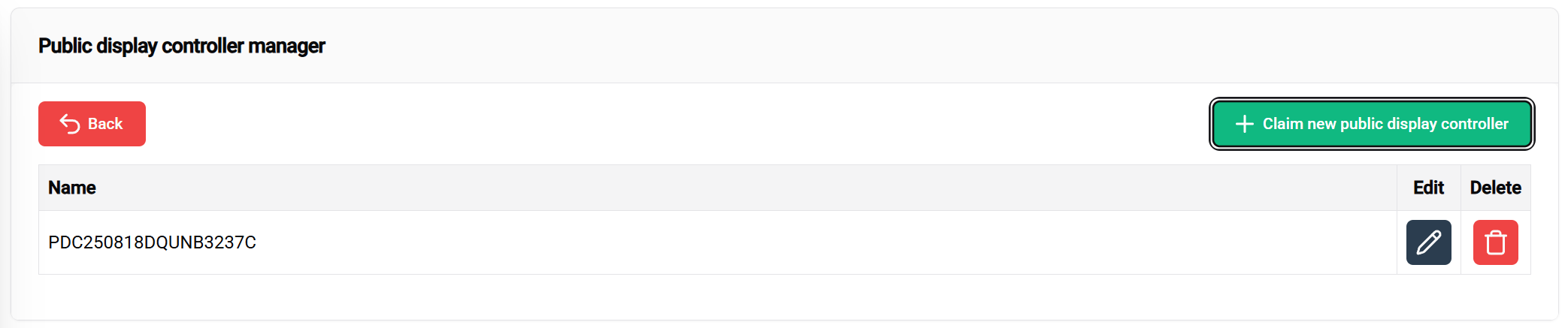
✅ Success! Your controller now appears in the table with options to:
Additional Resources 📖 For comprehensive template creation guidance, visit the documentation page.
In this step, you'll design the visual layout for your installation. Templates serve as reusable blueprints that define how your public display will be structured and displayed.
📝 Getting Started Note: This section provides essential template creation steps. For advanced customization options and detailed configuration, refer to the full template documentation.
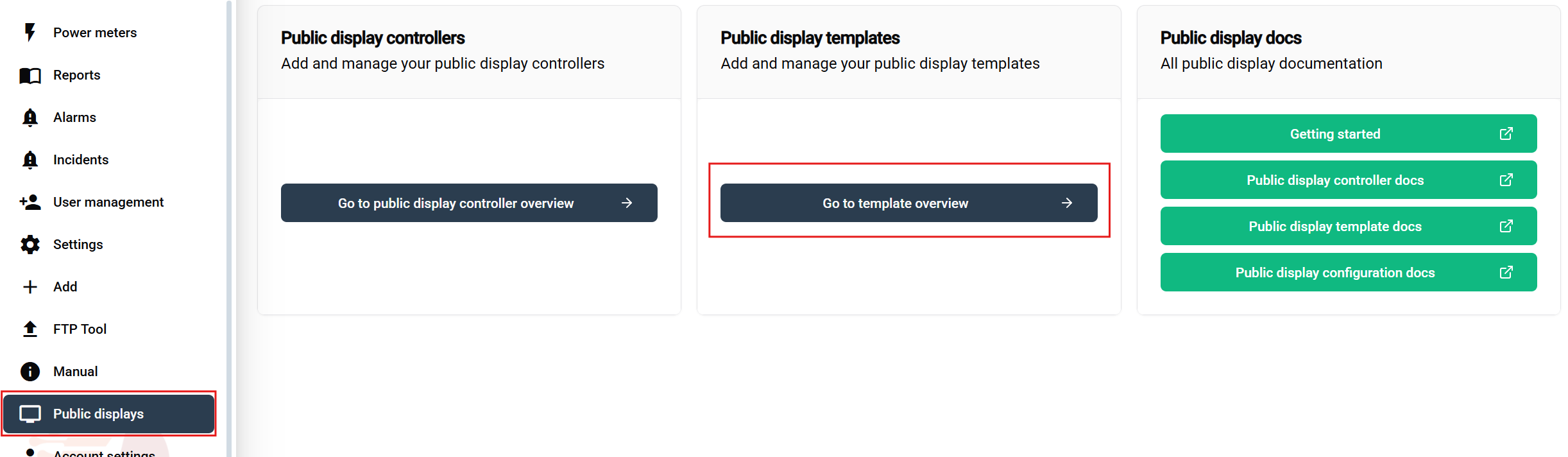
Navigation steps:
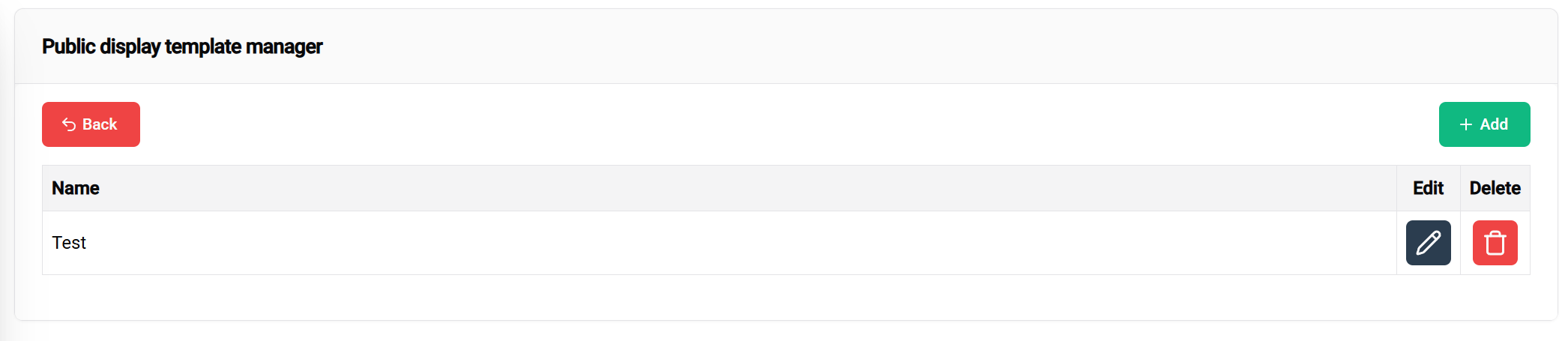
The template table provides:
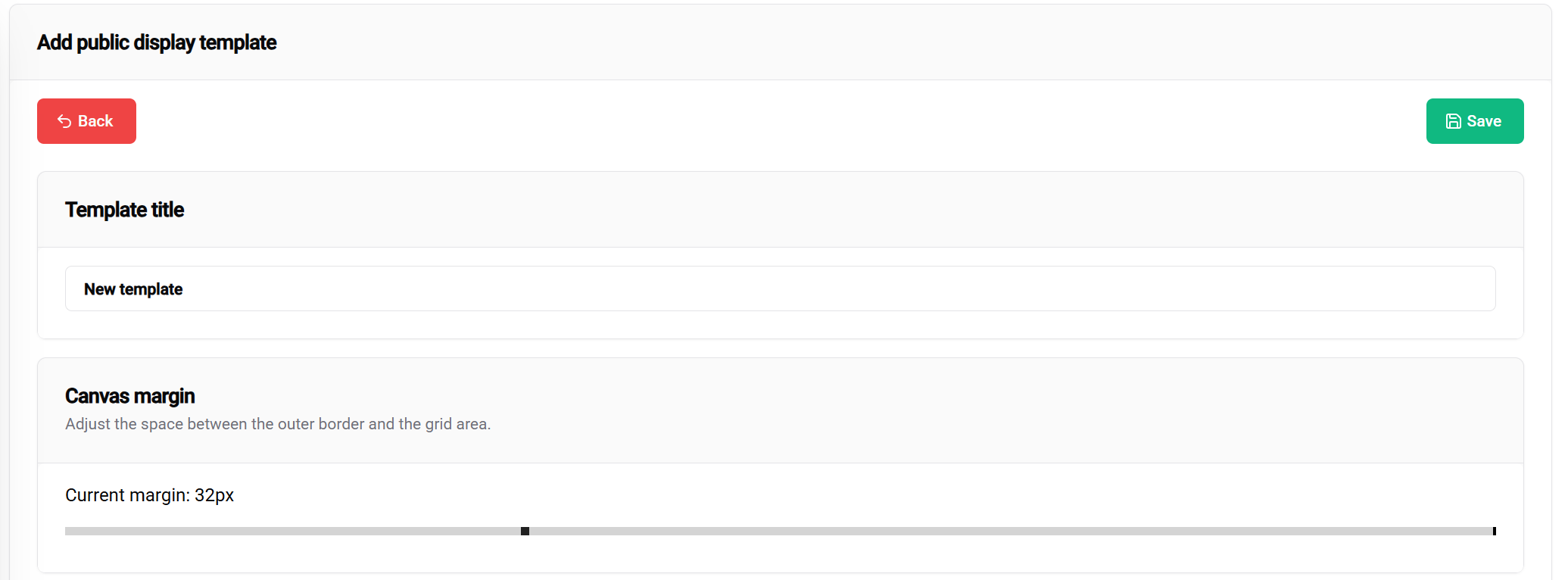
Header settings include:
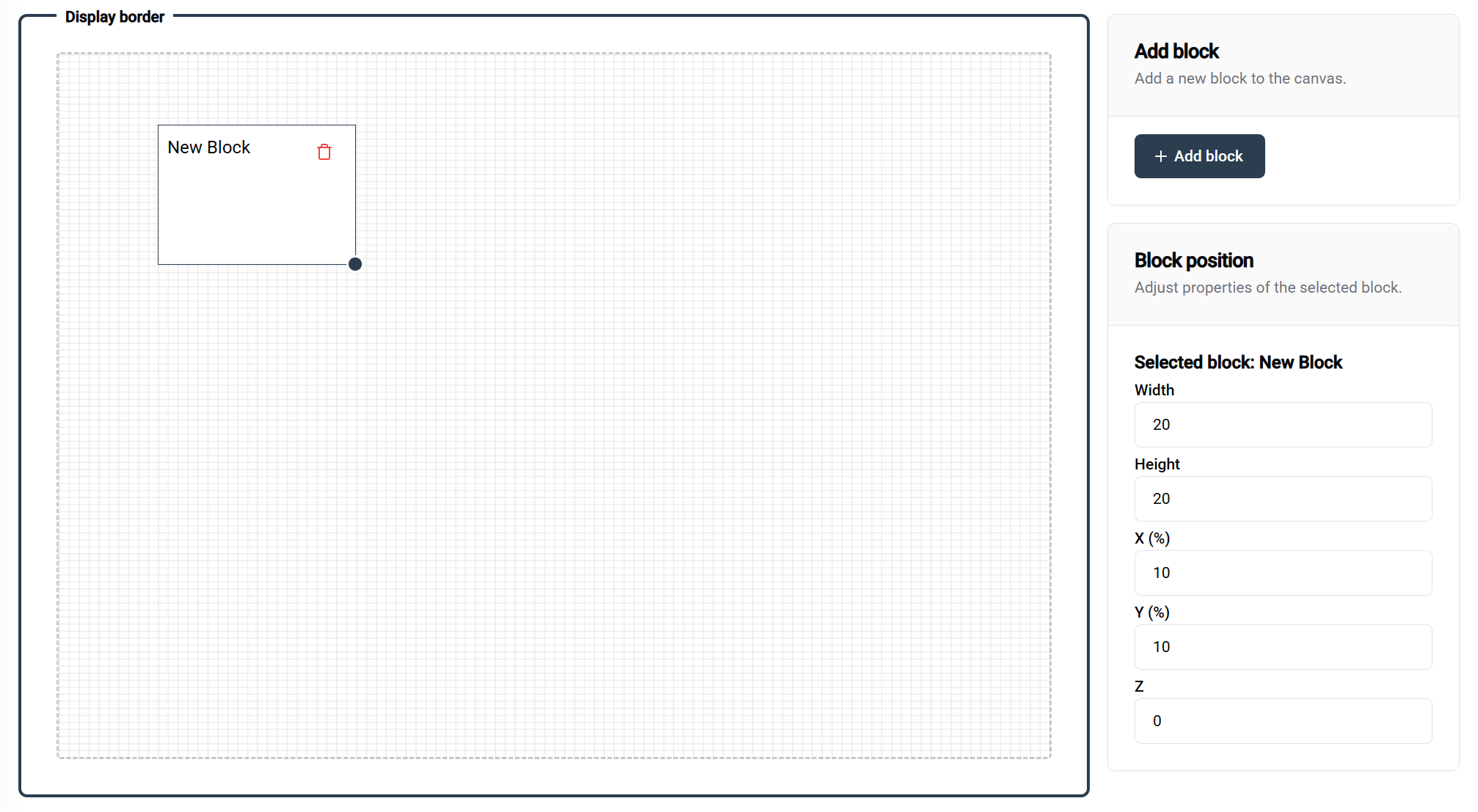
Working with blocks:
📐 Grid System Details:
🎛️ Precision Controls:
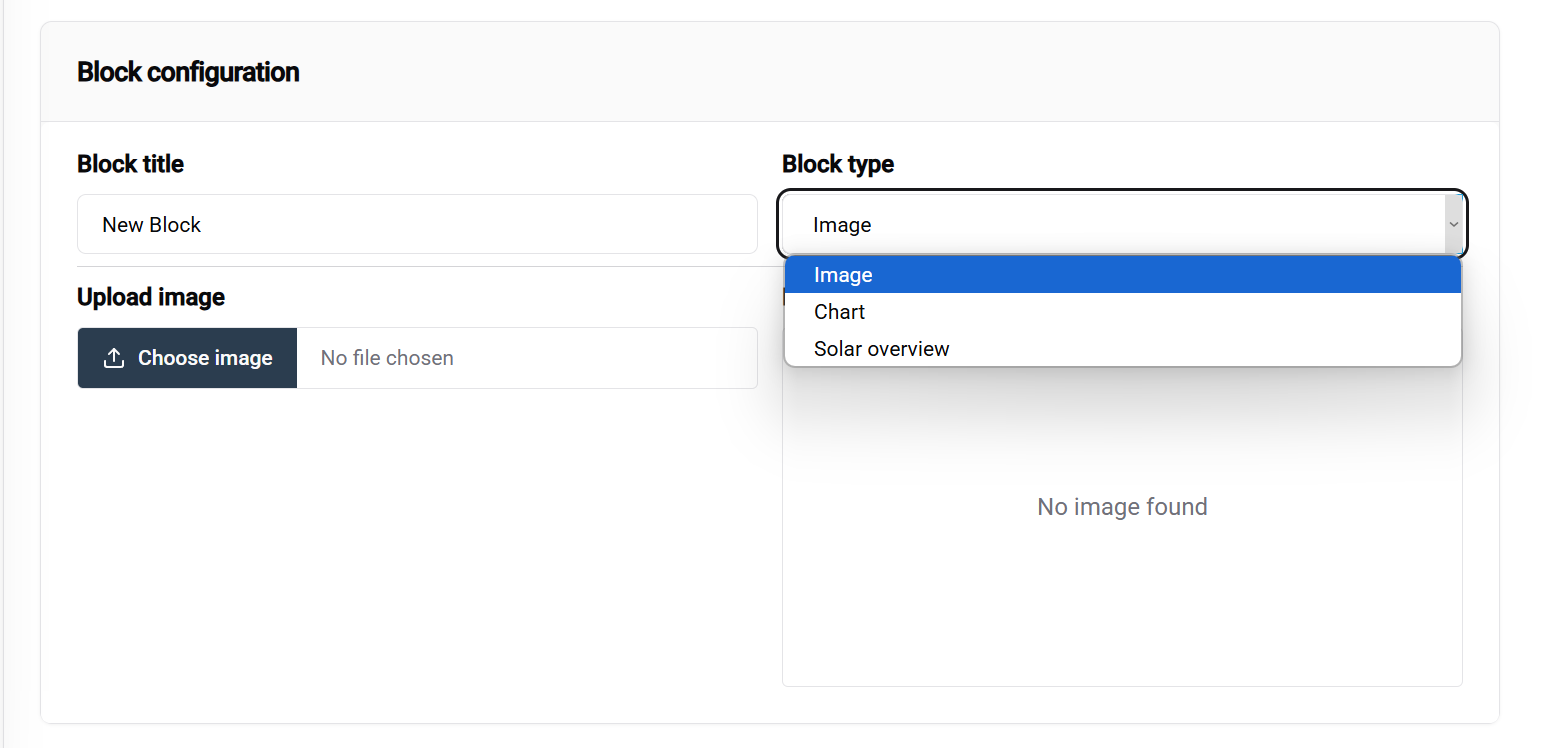
Configuration workflow:
📚 Learn More: Detailed information about different block types is available in the documentation.
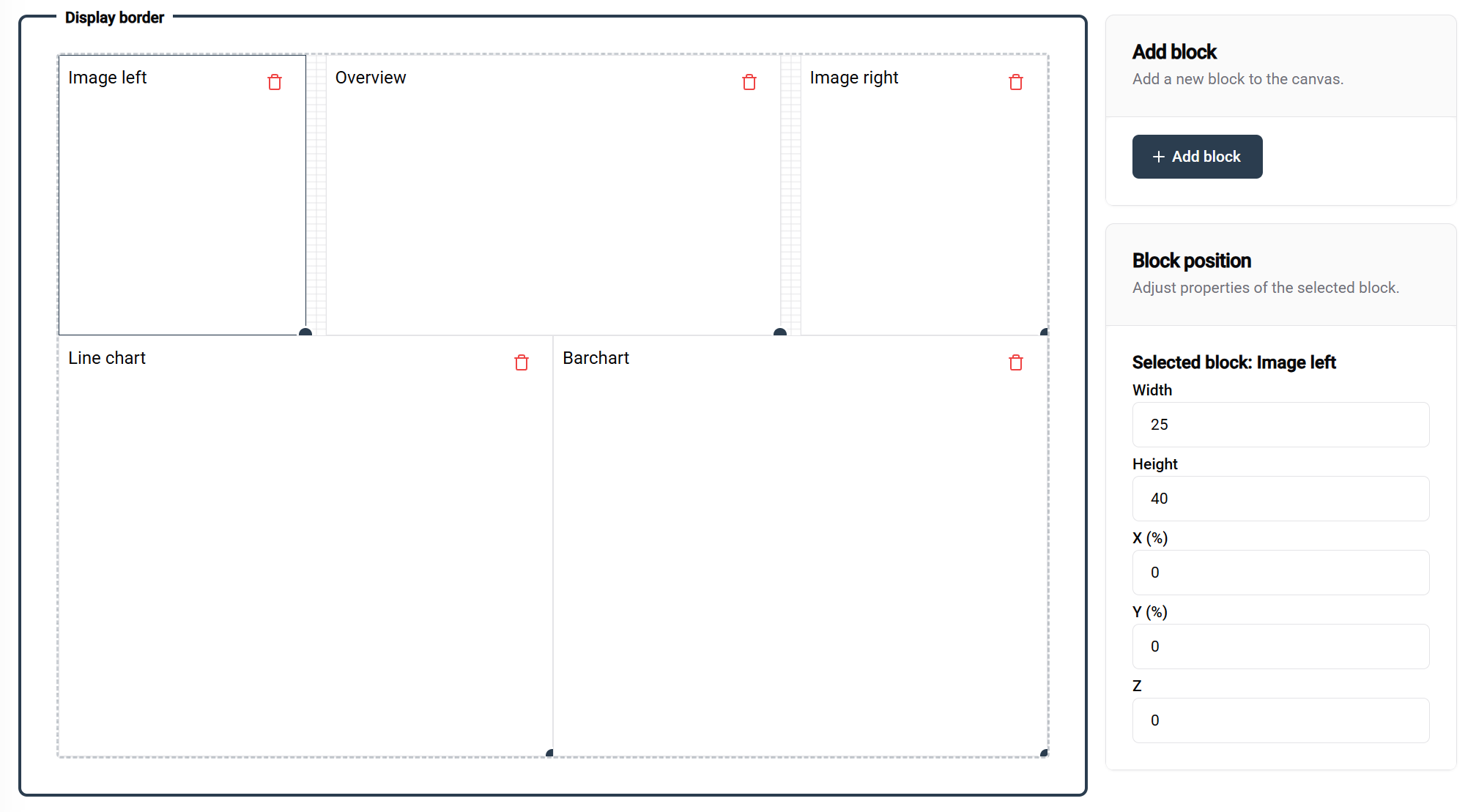
This example demonstrates a complete template setup with labeled blocks showing their respective configurations and purposes.
💾 Saving your template:
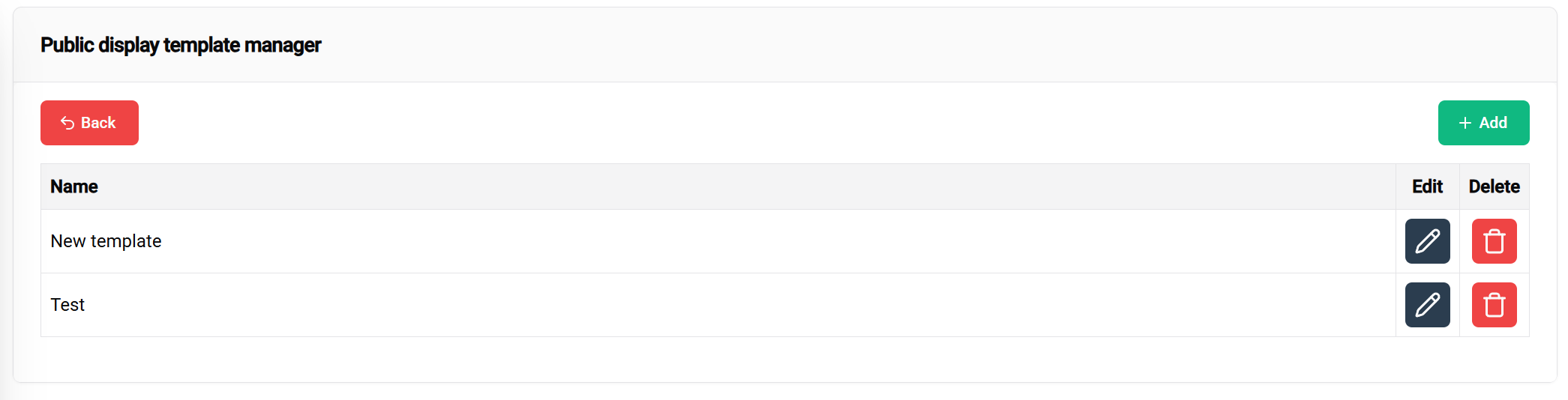
✅ Template created successfully! Your new template now appears in the management table, ready for:
Additional Resources 📖 For detailed configuration options, visit the documentation page.
In this final step, you'll apply your template to a specific installation and optionally link it to your claimed controller.
🎯 Outcomes after completion:
🧪 Testing Advantage: You can prepare and test templates and configurations before linking them to controllers, ensuring everything works perfectly before deployment.
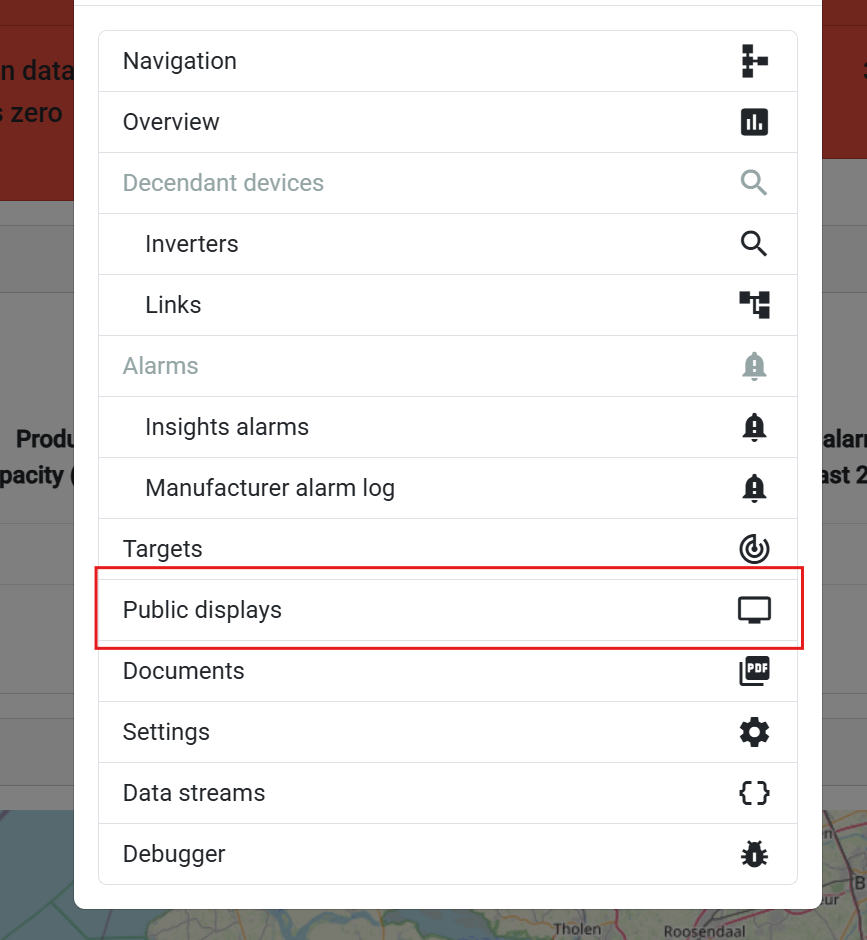
Navigation steps:
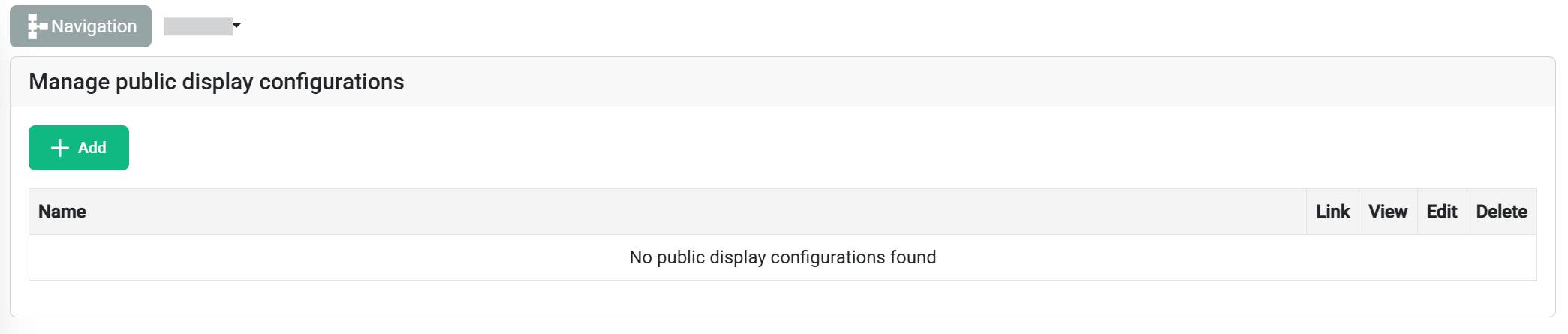
The configuration table shows:
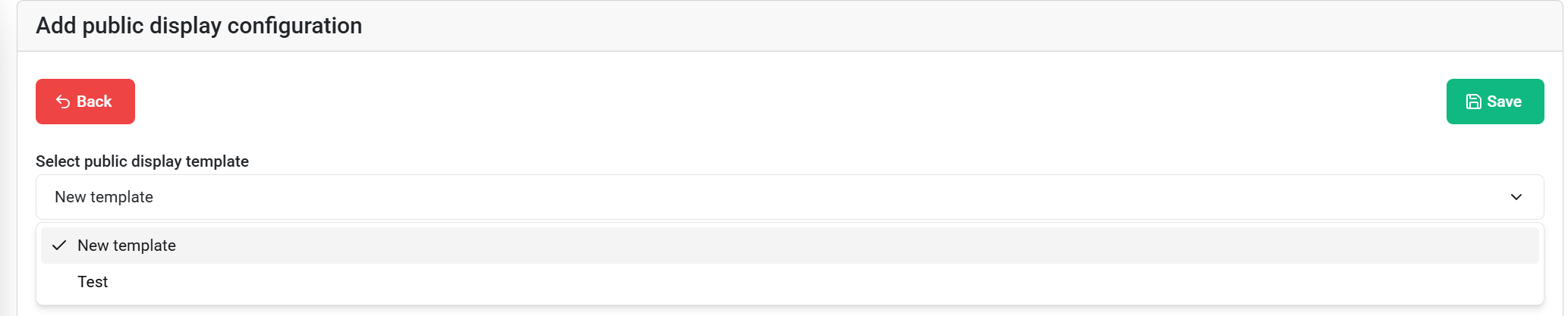
Configuration setup:
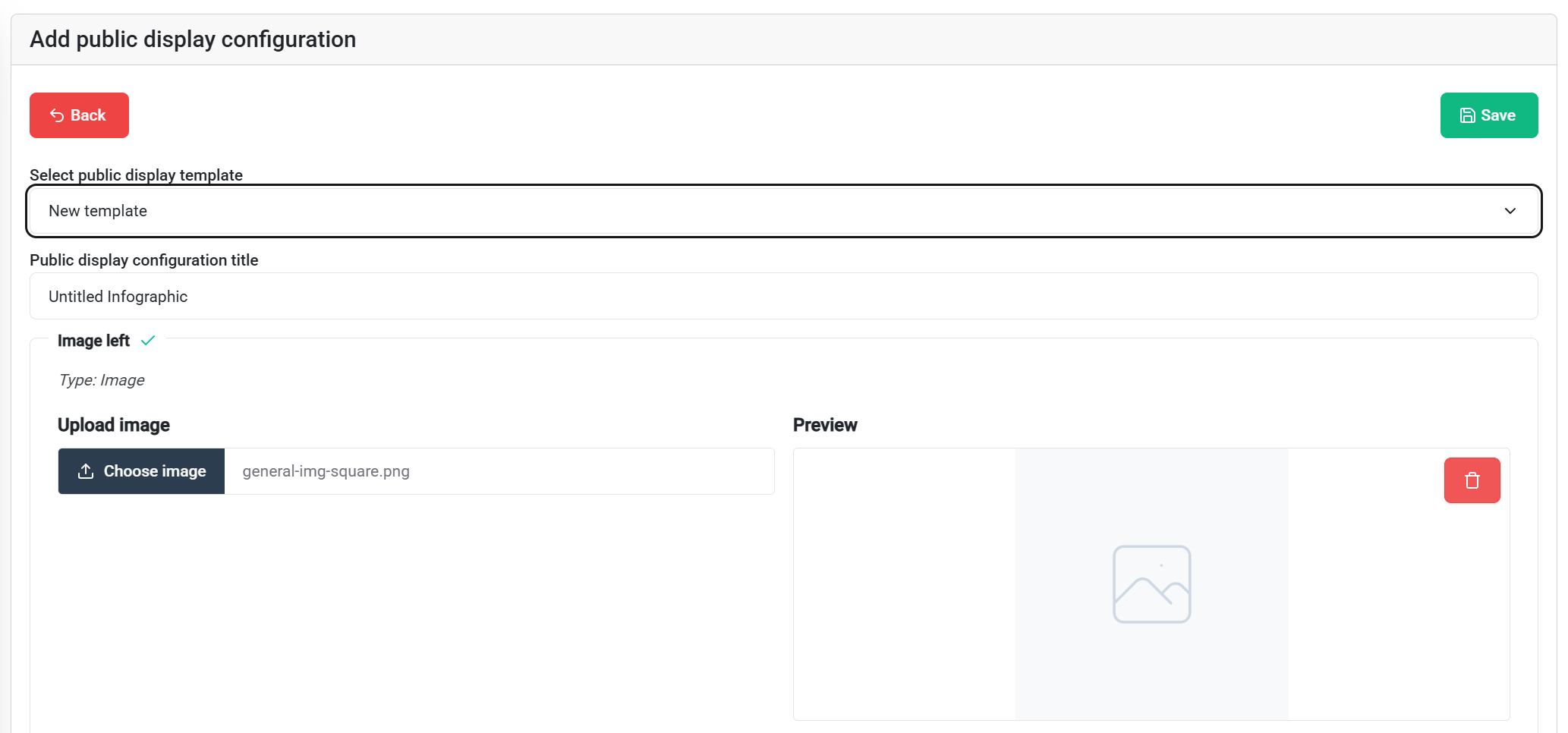
Configuration options:
💡 Tip: Standard images from templates provide a baseline - customize only what needs to be installation-specific.
💾 Save your configuration using the top-right save button when ready.

Available actions for saved configurations:
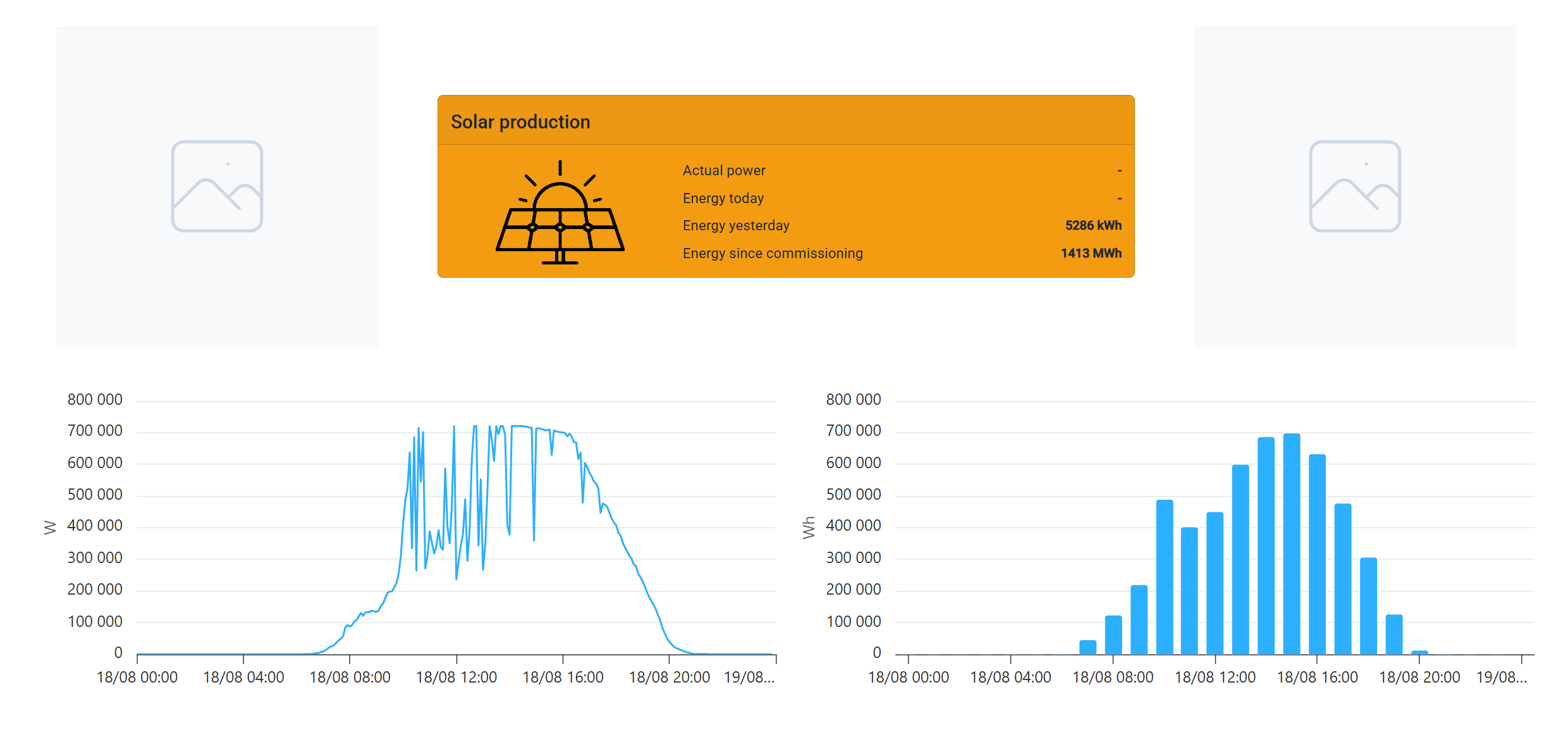
Preview features:
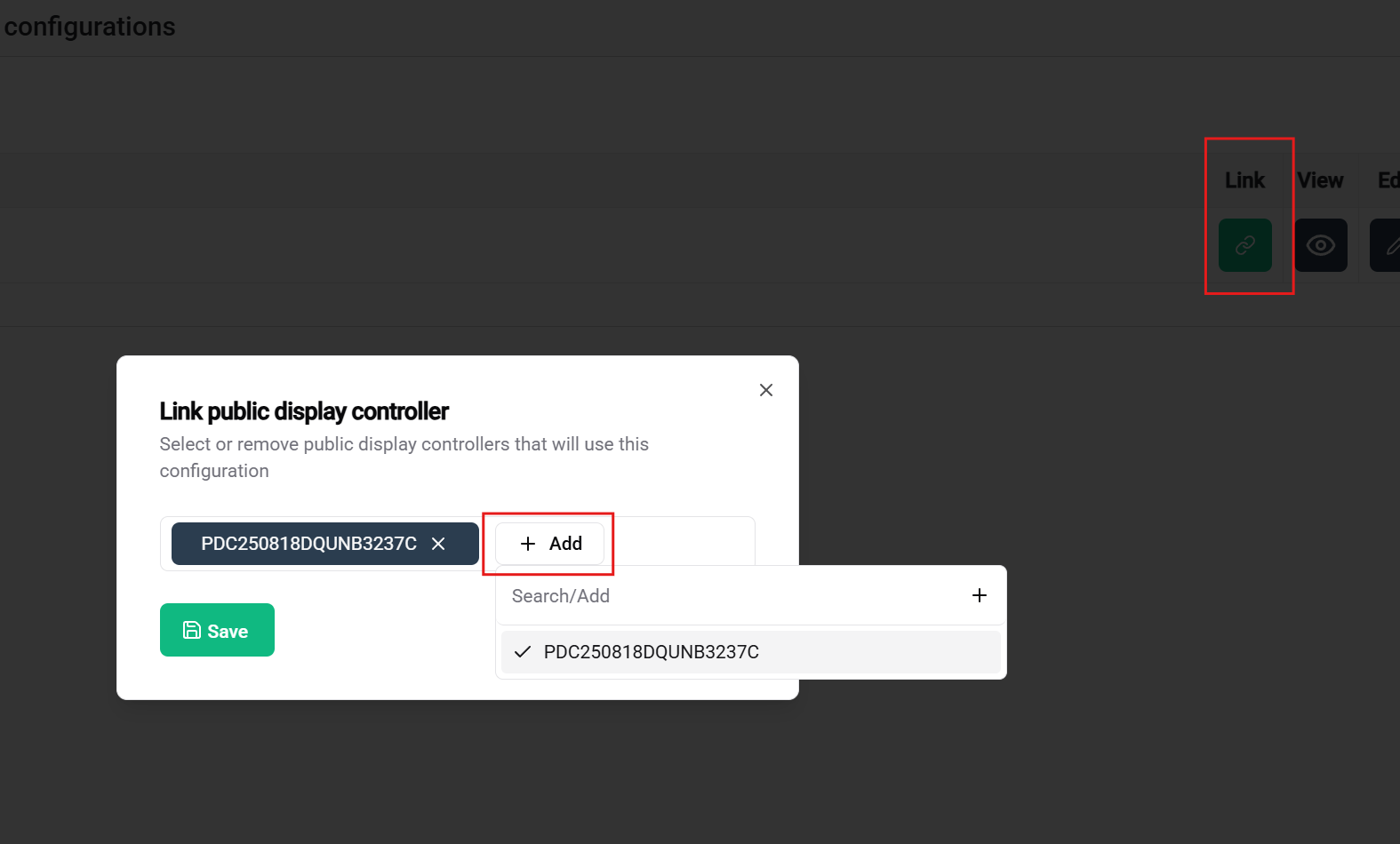
Final deployment step:
🎉 Success! Once everything is configured, linked, and the controller is connected, your custom public display will display on the screen.
Congratulations! You have successfully set up a complete public display system in SmartgridX.
✅ Controller Management - Claimed and registered your public display hardware
✅ Template Design - Created a reusable visual layout
✅ Configuration Setup - Applied your template to a specific installation
✅ System Integration - Connected all components for live display
🖥️ Display Ready: Your public display controller can now showcase your custom visualization on any connected screen
📚 Expand Your Knowledge: For advanced features and detailed customization options, explore the comprehensive documentation pages for each component
💬 Need Help? Our support team is available for questions, feature requests, or troubleshooting assistance
After successfully claiming your controller:
🚀 Ready to create more? You can now design additional templates and configurations to suit different installations and use cases!